
Adding a Blog to a Divi Website
Create a new page to host your blog posts. Add a Blog Module This is where your blog posts will be displayed.…
Create a new page to host your blog posts. Add a Blog Module This is where your blog posts will be displayed.…

To add titles and or captions to the gallery module click on the cog on the grey menu bar over the galley…
Login to the dashboard and navigate to [Divi] [Dashboard] Click [Generate a new site] Click [Generate My Website] Fill in the form…
To create or replace a download you will first need to upload the required file to the media library. From the dashboard…

1. Navigate to https://yourwebdomain.co.uk/wp-admin/ 2. Click “Theme Options” 3. Click “Updates” 4. Click the username field and enter your username 5. Click the…
1. Navigate to https://yourwebdomain.co.uk/this-is-my-new-page/ 2. Click “Enable Visual Builder” 3. Click here. 4. Click “4/4” 5. Click here. 6. Click here. 7. Click…
1. Navigate to https://yourwebdomain.co.uk/this-is-my-new-page/ 2. Click “Enable Visual Builder” 3. Click here. 4. Click “Text” 5. Click here. 6. Click “Exit Visual Builder”
1. Navigate to https://yourwebdomain.co.uk/this-is-my-new-page/ 2. Click “Enable Visual Builder” 3. Click here. 4. Click “Regular” 5. Click here. 6. Click here. 7. Click…
1. Navigate to https://yourwebdomain.co.uk/wp-admin/ 2. Click “Appearance” 3. Click “Menus” 4. Click the “Menu Name” field. 5. Type “Main Menu” 6. Click this…
1. Navigate to https://yourwebdomain.co.uk/wp-admin/ 2. Click “Divi” 3. Click “Theme Builder” 4. Click here. 5. Click here. 6. Click here. 7. Click “1/3”…
1. Navigate to https://yourwebdomain.co.uk/wp-admin/ 2. Click “Divi” 3. Click “Theme Builder” 4. Click here. 5. Click here. 6. Click here. 7. Click “3/5”…

To duplicate a module click on the duplicate icon (Resembles 2 overlapping boxes) on the grey menu bar.
1. Click [Enable Visual Builder] 3. Click on the page you want to duplicate 4. Click [Use this layout] 5. Then [Exit…
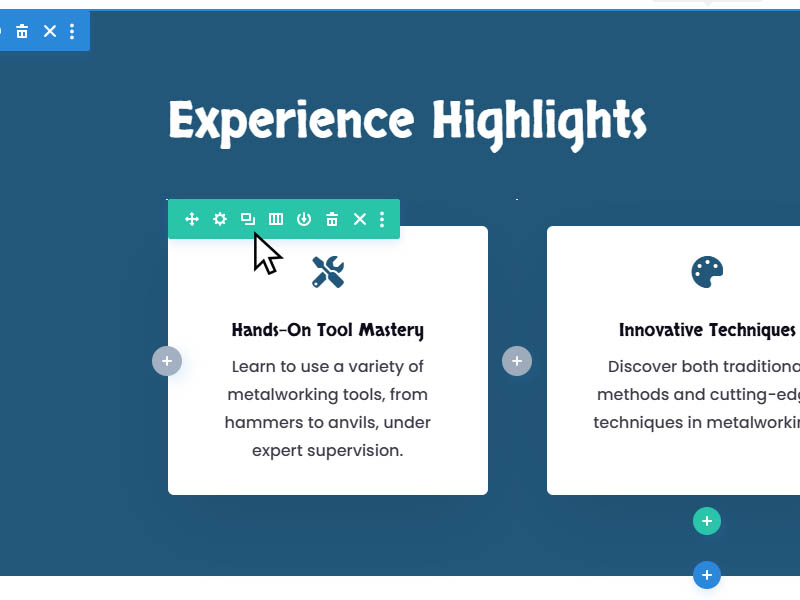
To duplicate a row click on the duplicate icon (Resembles 2 overlapping boxes) on the green menu bar.
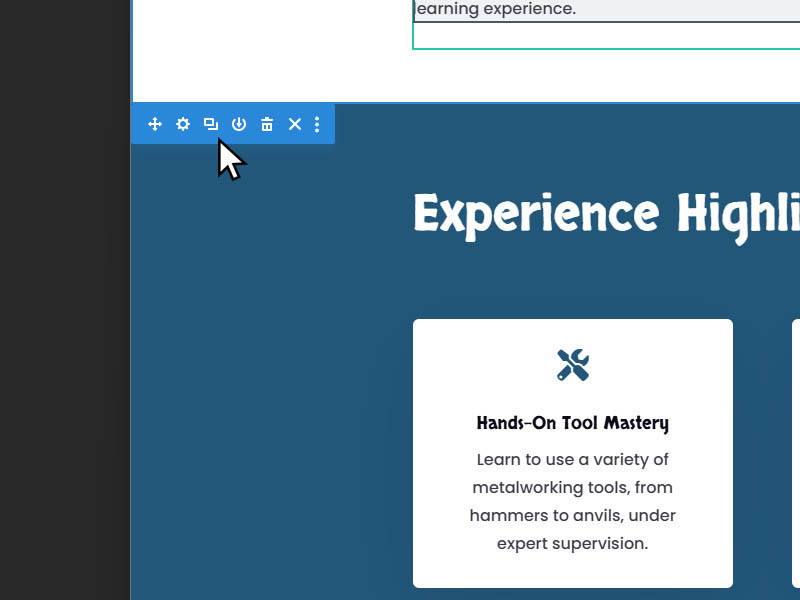
To duplicate a Section click on the duplicate icon (Resembles 2 overlapping boxes) on the blue menu bar.
1. Navigate to https://yourwebdomain.co.uk/wp-admin/ 2. Click “Divi” 3. Click “Theme Builder” 4. Click here. 5. Click here. 7. Click here. 8. Click “Import”…
1. Navigate to https://yourwebdomain.co.uk/wp-admin/ 2. Click “Divi” 3. Click “Theme Builder” 4. Click here. 5. Click here. 6. Click here. 7. Click…
1. Navigate to https://yourwebdomain.co.uk/your-page/ 2. Click “Enable Visual Builder” 3. Click this image. 4. Click here. 5. Click here. 6. Click here.…
1. Navigate to https://yourwebdomain.co.uk/wp-admin 2. Click “Divi” 3. Click “Divi Library” 4. Click “Import & Export” 5. Click “Import” 6. Click “CHOOSE FILE”…
Navigate to the page on your website that you wish to edit. At the top of the page click “Enable Visual Builder”…
1. Navigate to https://yourwebdomain.co.uk/wp-admin/ 2. Click “Divi” 3. Click “Builder” 4. Click “Advanced” 5. Click here. 6. Click “Save Changes”
Or know something we should add?