Reverse image search is a valuable tool that allows you to find the original form and location of an image (not including deleted posts)
Mobile:
There are two versions of google on mobile, neither have them on the taskbar, but it is on the default tab for both of them, and easy to access
The lens uses your camera at first, and you can use that to use google translate or to find what something is, for example, a keyboard’s brand
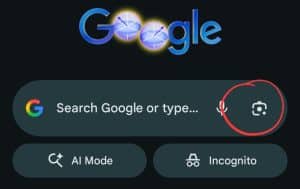
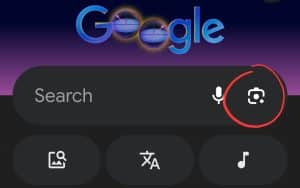
You can also use lens on pre-existing images, for seeing more clearly, use visual match mode
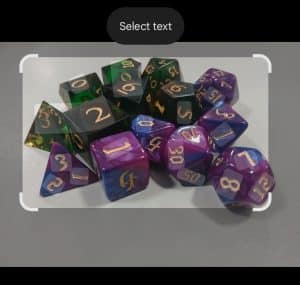
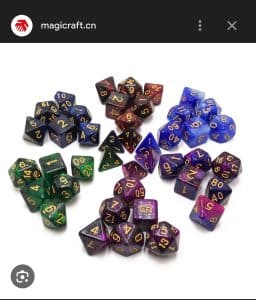
The image found contains premade and homemade dice, but the lens could tell them apart and found an almost exact copy of the premade dice
Desktop:
It is included in most desktop browsers, but this tutorial is for Google Chrome, which on desktop, does not have their google lens app installed on the taskbar
Instead, go to the extensions browser and install “Search by Image” by armin.dev
It will have settings changeable in the puzzle-piece logo on your taskbar
For using it to access google lens from the taskbar, change the settings to these:
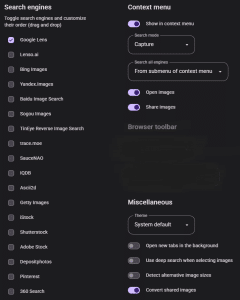
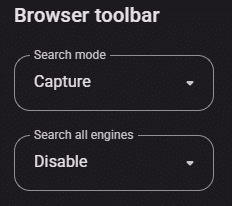
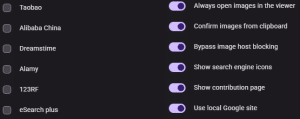
Now, when you use it, you will be given a selection box that will search for an image’s original source
For example, this image
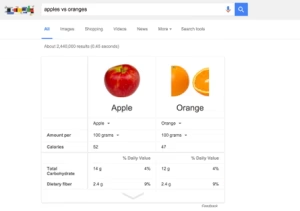
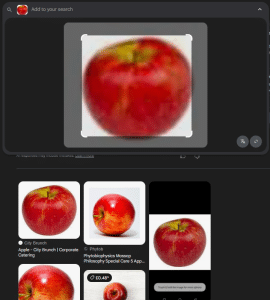
If we want to find where the apple came from, you would select the apple, then press the search button
It will put it into google lens, again, something not accessible from taskbar normally, which is where you would need it to be
And now we know that the apple in that image was the Honeycrisp Apple image from